- Blog
- 06.25.2024
- Data Fundamentals, Product
Manage Elastic Container Services (ECS) Fargate Containers with the AWS Command Line Interface (CLI)- worked example for Matillion Redshift and Databricks users

Amazon Elastic Container Service (ECS) is a fully managed container orchestration service that allows users to easily run, stop, and manage containers using AWS Fargate.
In this article I'll describe the metamodel that underpins ECS, and give a worked example of how to define and run containers using the AWS command line interface (CLI). The code samples will include related infrastructure such as IAM, Secrets, CloudWatch and EC2 Security Groups.
The example container image will be the Matillion Data Productivity Cloud's Customer Hosted Agent (CHA or "hybrid SaaS"). This is relevant for Amazon Redshift and Databricks Enterprise Plan users, and those who prefer not to use the CloudFormation option.
Amazon Elastic Container Service Metamodel
At the core of ECS, several key entities underpin container management and orchestration. The most important of these is the Task Definition, which serves as a blueprint for application containers. Task Definitions in ECS specify parameters such as the container image source, resource allocation (CPU, memory), logical networking configurations, and IAM roles.
Each Task Definition can have multiple revisions to handle iterative updates. A Task Definition Revision is essentially a versioned snapshot of a Task Definition, allowing users to manage changes systematically. Revisions enable a clear and controlled method for deploying updates, as users can specify particular revisions to start or stop tasks.
Clusters are a logical grouping of Services, and every Service holds the actual containers in the form of Tasks. You launch a service by nominating a desired number of Task Definition Revisions to run.
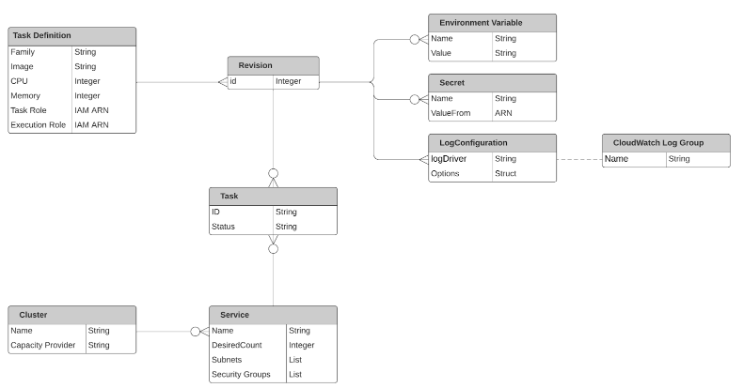
Amazon Elastic Container Service Metamodel
Prerequisites for managing Amazon ECS
You will need access to the latest version of the AWS v2 CLI: 2.15.50 at the time of writing.
Choose an appropriate AWS region (I will be using eu-west-1), and make sure you have privileges to manage AWS services, including:
- ECS, of course!
- EC2, for networking and security groups
- IAM
- AWS Secrets Manager
- CloudWatch
Setting up an Agent in the Matillion Data Productivity Cloud
The first step when creating a CHA is to make the Matillion Data Productivity Cloud aware of what you are setting up.
From your Hub homepage follow: Manage Agents > Add Agent > Create Data Productivity Cloud Agent. Choose a name, and then select AWS and Fargate.

Take a note of the variables that appear in the following screen. You will need them in later steps.
- ACCOUNT_ID
- AGENT_ID
- OAUTH_CLIENT_ID
- OAUTH_CLIENT_SECRET
The Agent state will remain PENDING until you have launched the tasks and they have connected to the Matillion Hub to indicate that the CHA is running.
Adding an AWS Secrets Manager Secret using the CLI
The OAUTH_CLIENT_ID and OAUTH_CLIENT_SECRET are the main components of securing communication between your CHA and the Matillion control plane. They are managed safely as secrets rather than being held in plain text or in configuration files.
I recommend keeping to an internal naming convention, such as AgentName_CHA_OAUTH
aws secretsmanager create-secret --region eu-west-1 --name EXAMPLE_CHA_OAUTH --description "OAuth secrets for DPC agent EXAMPLE_CHA" --secret-string "{\"client_id\":\"xxxxxxxx-xxxx-xxxx-xxxx-xxxxxxxxxxxx\",\"client_secret\":\"xxxxxxxxxxx\"}"
Be careful with the formatting of the JSON, in particular the escaped double quotes.
When setting up a secret for your Matillion CHA, the keys must have the exact names shown above: client_id and client_secret.
After the command has run, note the ARN of the generated secret, which you will need in the next section.
Creating an IAM role for ECS Service Task Execution
ECS Task Definitions rather confusingly need two IAM roles. This first one, known as the Task Execution role, is only used when Tasks are being created, and therefore only needs a small set of privileges:
- Read from the EC2 Container Registry, which is handled by the built-in AmazonECSTaskExecutionRolePolicy
- Read the secret you just created, which enables the newly created Task to communicate securely with the Matillion Data Productivity Cloud control plane and identify itself
This role is specific to an Agent, so I suggest a naming convention such as AgentName_CHA_TX.
You will first need to create a text file named TXTrustPolicy.json that defines which kinds of AWS service principals will be able to use the role:
{
    "Version": "2012-10-17",
    "Statement": [
        {
            "Effect": "Allow",
            "Principal": {
                "Service": "ecs-tasks.amazonaws.com"
            },
            "Action": "sts:AssumeRole"
        }
    ]
}
Now you can create the Service Task Execution role:
aws iam create-role --role-name MY_CHA_TX --assume-role-policy-document file://TXTrustPolicy.json
Once the role exists, add the managed policy AmazonECSTaskExecutionRolePolicy:
aws iam attach-role-policy --role-name MY_CHA_TX --policy-arn "arn:aws:iam::aws:policy/service-role/AmazonECSTaskExecutionRolePolicy"
Create a file named ReadSecret.json to define a custom policy that allows reading your newly defined secret:
{
	"Version": "2012-10-17",
	"Statement": [
		{
			"Action": [
				"secretsmanager:GetSecretValue"
			],
			"Resource": "arn:aws:secretsmanager:<<your ARN here>>",
			"Effect": "Allow"
		}
	]
}
Add this custom policy inline to the IAM role:
aws iam put-role-policy --role-name MY_CHA_TX --policy-name "CHA-Secret" --policy-document file://ReadSecret.json
Delete the temporary files once the role has been created.
Creating an IAM role for ECS Tasks to assume
This is the second of two IAM roles that ECS Task Definitions require. This is the one that your CHA tasks will assume while running. It needs the privilege to perform the day-to-day basic cloud operations such as interacting with S3, plus any specific privileges for your own use case.
Over time, you will be able to re-use this role for multiple Agents, so I suggest a generic name such as MATILLION_CHA_RX.
This role needs its own trust policy definition, which you need to create in a file named RXTrustPolicy.json:
{
    "Version": "2012-10-17",
    "Statement": [
        {
            "Effect": "Allow",
            "Principal": {
                "Service": [
                    "ecs-tasks.amazonaws.com",
                    "ec2.amazonaws.com"
                ]
            },
            "Action": "sts:AssumeRole"
        }
    ]
}
Now you can create the ECS Task role:
aws iam create-role --role-name MATILLION_CHA_RX --assume-role-policy-document file://RXTrustPolicy.json
For simplicity, add the managed policy CloudWatchFullAccess:
aws iam attach-role-policy --role-name MATILLION_CHA_RX --policy-arn "arn:aws:iam::aws:policy/CloudWatchFullAccess"
.. and the managed policy SecretsManagerReadWrite:
aws iam attach-role-policy --role-name MATILLION_CHA_RX --policy-arn "arn:aws:iam::aws:policy/SecretsManagerReadWrite"
There is a collection of miscellaneous IAM privileges that every agent needs in order to operate successfully. You can find this on the Matillion Exchange page IAM Privileges for Customer Hosted Agents on AWS. Create a file named AgentPolicy.json containing the JSON document shown in the Inline policy section:
{
  "Version": "2024-05-17",
  "Statement": [
    {
      "Action": [
        "s3:ListAllMyBuckets",
    ...
    ...
  ]
}
Add this custom policy inline to the IAM role:
aws iam put-role-policy --role-name MATILLION_CHA_RX --policy-name "CHA-Custom" --policy-document file://AgentPolicy.json
Delete the temporary files once the role has been created.
Additional IAM privileges
This role is the place to grant access to any other services that your Agent will need to use. For example, add AmazonBedrockFullAccess to gain access to the generative AI features in Amazon Bedrock, such as large language models.
Networking and Security Group configuration for ECS tasks
Choose a VPC containing at least two subnets. You may use either:
- Public subnets - with a route to an Internet Gateway
- Private subnets - with a route to a NAT gateway
Matillion CHA tasks have no need for any inbound access. All communication with the internet and with the Matillion control plane is initiated by the agents themselves.
Create a Security Group with no inbound rules. This can be used for multiple agents, so I suggest a generic name such as MATILLION_CHA_SG.
aws ec2 create-security-group --region eu-west-1 --group-name MATILLION_CHA_SG --description "Security group for DPC CHA" --vpc-id "vpc-99999999"
Note the ID of your VPC, the subnets, and the new Security Group. These will be used in the following sections.
Creating a CloudWatch Log Group
It's possible to have the ECS tasks create their own CloudWatch Log Group upon creation, but AWS recommends that you create the Log Group in advance instead. That means there is no need to add logs:CreateLogGroup to the Service Task Execution IAM role.
Choose a naming convention for CloudWatch Log Group names, such as /CHA/ENVIRONMENT/AGENT-NAME.
aws logs create-log-group --region eu-west-1 --log-group-name /CHA/PROD/MY_CHA
Log groups default to infinite retention: log events never expire. Depending on your audit requirements you may choose to impose a finite retention period instead. For example:
aws logs put-retention-policy --region eu-west-1 --log-group-name /CHA/PROD/MY_CHA --retention-in-days 7
Remember your Log Group name, as it will be referenced in the ECS task definition later.
Create an ECS Cluster
Clusters are a logical wrapper for Services in the ECS metamodel. This is where you can declare the FARGATE and FARGATE_SPOT capacity providers to associate with the cluster.
Choose a name that clearly identifies the purpose of the cluster:
aws ecs create-cluster --region eu-west-1 --cluster-name "CHA-CLUSTER" --capacity-providers FARGATE FARGATE_SPOT --settings "name=containerInsights,value=enabled"
The cluster name will be used in the Task Definition in the next step.
Creating an ECS Task Definition with the AWS CLI
ECS Task Definitions contain most of the container configuration metadata, and they reference the objects you have already created or are re-using, including:
- The ARN from your new Secrets Manager Secret
- The ARNs of your two IAM roles
To size Tasks, choose the CPU and memory settings that you need. Fargate tasks can use between 256 CPU units (¼ vCPU) and 16384 CPU units (16 vCPUs). The available memory sizes depend on the CPU setting, and range between 512 (meaning 0.5 GB) and 120 GB. Reference documentation is in the --cpu setting in the AWS register-task-definition guide.
Choosing the awsvpc network mode allows you to defer selecting the actual subnets and security group until you create the Service.
The "family" is the unique identifier of an ECS Task Definition, and you should choose a name that reflects the source and purpose of the containers.
For Matillion CHA users, one revision of a Task Definition equates to one Matillion CHA. The following settings are most important:
- A good choice for the family name is the name you chose when setting up your CHA in the Matillion Data Productivity Cloud
- The URI of the Matillion CHA image in the EC2 Container Registry (ECR) is public.ecr.aws/matillion/etl-agent:current
- Your ACCOUNT_ID and AGENT_ID are specified here as plaintext variables
- Your OAUTH_CLIENT_ID and OAUTH_CLIENT_SECRET are specified as references to Secrets Manager
- Set the MATILLION_REGION to match the region of your Hub account - for example eu1 or us1
- In the logConfiguration, set the awslogs-region to your chosen AWS region - for example eu-west-1
- Set awslogs-group to the name of the CloudWatch Log Group you created earlier
- Setting awslogs-stream-prefix causes the CHA to create logs in Log Streams named prefix-name/container-name/ecs-task-id. The Log Stream names will change whenever the Tasks are restarted
- A good initial choice is 1024 CPU units (one vCPU) and 4096 MB (4 GB) of memory
aws ecs register-task-definition --region eu-west-1 --family MY_CHA\
        --task-role-arn "<<ARN of MATILLION_CHA_RX>>"\
        --execution-role-arn "<<ARN of MY_CHA_TX>>" \
        --network-mode awsvpc\
        --container-definitions '[{"name":"MATILLION_CHA", "image":"public.ecr.aws/matillion/etl-agent:current", "dockerLabels":{}, "essential":true, "environment":[{"name": "ACCOUNT_ID", "value": "xxxxxxxx-xxxx-xxxx-xxxx-xxxxxxxxxxxx"},{"name": "AGENT_ID", "value": "xxxxxxxx-xxxx-xxxx-xxxx-xxxxxxxxxxxx"},{"name": "MATILLION_REGION", "value": "eu1"}],"secrets":[{"name": "OAUTH_CLIENT_ID", "valueFrom": "<<ARN of your Secret>>:client_id::"},{"name": "OAUTH_CLIENT_SECRET", "valueFrom": "<<ARN of your Secret>>:client_secret::"}], "logConfiguration":{"logDriver":"awslogs", "options":{"awslogs-region":"eu-west-1","awslogs-group":"/CHA/PROD/MY_CHA","awslogs-stream-prefix":"ecs"}}}]'\
        --runtime-platform 'cpuArchitecture=X86_64,operatingSystemFamily=LINUX'\
        --requires-compatibilities 'FARGATE'\
        --cpu 1024\
        --memory 4096
The output from the above command is verbose, and will include the new ECS Task Definition Revision.
ECS Task Definition Revisions
Whenever you register a Task Definition, AWS chooses an incremental version number, starting at 1. The unique identifier of a specific Task Definition Revision is made up of the family name and the revision number, separated by a colon.
# Example, revision 1 of family MY_CHA
MY_CHA:1
Whenever you make changes, another revision is created. You can clean up old revisions that are no longer in use with these commands:
aws ecs deregister-task-definition --region eu-west-1 --task-definition MY_CHA:1
aws ecs delete-task-definitions --region eu-west-1 --task-definition MY_CHA:1
Create an ECS Service
Once you have created a Task Definition, you are ready to create an ECS Service that will use it to run the containers.
- Set the Task Definition to the full revision identifier, for example MY_CHA:1
- Use the actual names of your chosen subnets and security group when setting the awsvpcConfiguration
- The capacity-provider-strategy allows up to 6 capacity providers. Choose FARGATE and/or FARGATE_SPOT, along with a numeric weight that will determine how AWS chooses between the providers. The example below just uses FARGATE.
For Matillion CHA users:
- You will find it helpful if you choose a service name that matches your Matillion Hub's Agent name
- Setting a desired count of 2 or more means that the automatic version upgrades will happen with zero downtime
aws ecs create-service --region eu-west-1 --cluster "CHA-CLUSTER" --service-name MY_CHA --capacity-provider-strategy '[{"capacityProvider":"FARGATE","weight":100}]' --desired-count 2 --task-definition MY_CHA:1 --scheduling-strategy REPLICA --network-configuration "awsvpcConfiguration={subnets=[subnet-01234,subnet-56789],securityGroups=[sg-abcdef],assignPublicIp=ENABLED}"
The tasks might take a few minutes to start, but you should soon find the requested number of Tasks running within your new ECS Service. In your CloudWatch console you should also see logs starting to appear in the new Log Group.
In your Matillion Hub homepage, under Manage Agents you should see the status of your new CHA change to Running.

Your new Matillion CHA is ready to use!
Further Information
Reference guides:
- AWS guide to Creating a cluster with a Fargate Linux task using the AWS CLI
- AWS CLI Command Reference for ecs
- Docker reference on the Amazon CloudWatch Logs logging driver
- Matillion guide to AWS Fargate manual agent setup
- Matillion Data Productivity Cloud Agent Overview
Every Matillion Data Productivity Cloud account includes a Full SaaS agent, hosted by Matillion, offering a zero-install and zero-maintenance experience. By starting with Full SaaS, you can quickly leverage Matillion's capabilities without any setup.
As your requirements become more sophisticated, you can opt for the Hybrid SaaS model later and customize it to your unique infrastructure. Available for Enterprise plan users, the Hybrid SaaS option allows installing Matillion's agent software within your own data plane.
Follow this link to try out the Matillion platform for free on your own data.

Ian Funnell
Data Alchemist
Ian Funnell, Data Alchemist at Matillion, curates The Data Geek weekly newsletter and manages the Matillion Exchange.
Follow Ian on LinkedIn: https://www.linkedin.com/in/ianfunnell

Featured Resources
Big Data London 2025: Key Takeaways and Maia Highlights
There’s no doubt about it – Maia dominated at Big Data London. Over the two-day event, word spread quickly about Maia’s ...
BlogSay Hello to Ask Matillion, Your New AI Assistant for Product Answers
We’re excited to introduce a powerful new addition to the Matillion experience: Ask Matillion.
BlogRethinking Data Pipeline Pricing
Discover how value-based data pipeline pricing improves ROI, controls costs, and scales data processing without billing surprises.
Share: